
Download Stacher – Fast, Free YouTube Video Downloader for Mac
Stacher is a robust multimedia application built specifically for macOS users who want a reliable, high‑performance solution for downloading YouTube videos. With an intuitive, clean interface, Stacher makes it effortless to capture your favorite content in the exact resolution and format you need. Whether you’re a student collecting lecture videos, a creator building a personal archive, or simply a binge‑watcher who wants offline access, Stacher delivers fast downloads while preserving the original video quality.
The app also includes an automatic conversion engine, letting you switch files to MP4, MOV, audio‑only MP3, or other device‑compatible formats without installing extra software. Best of all, Stacher is offered as a free download, so you can start building your offline library immediately, without hidden fees or subscription traps. This review breaks down the most important aspects of Stacher, from core features and installation steps to system compatibility, pros and cons, and the answers to the most common questions users have before they download.
Key Features of Stacher – What Sets It Apart from Other YouTube Downloaders
- Lightning‑fast download engine – Utilises multi‑threaded technology to accelerate download speeds up to 5× faster than many competing tools.
- Resolution and format flexibility – Supports 4K, 1080p, 720p, 480p, and audio‑only options, letting you choose exactly what you need.
- One‑click automatic conversion – Convert videos to MP4, MOV, MP3, AVI, or GIF directly inside the app, eliminating the need for third‑party converters.
- Batch downloading – Add multiple URLs at once and let Stacher process them sequentially or in parallel, perfect for playlists and series.
- Built‑in preview player – Watch a short preview before you download, ensuring you capture the right segment.
- Secure, ad‑free experience – No intrusive ads, pop‑ups, or bundled software; the installer is signed by Apple for verified security.
- Automatic updates – Stacher checks for the latest YouTube API changes and updates itself in the background, keeping the downloader functional.
- Custom output folder – Choose a dedicated directory or let Stacher organize files by channel, playlist, or date.
- Lightweight footprint – The app occupies less than 120 MB on disk and runs smoothly on older Mac hardware.
- Privacy‑first design – No user data is collected or transmitted; all processing stays on your local machine.
Installation & First‑Time Usage Guide – Getting Stacher Up and Running in Minutes
Installing Stacher on macOS is a straightforward process that even a non‑technical user can complete in under five minutes. Follow these steps to download, install, and start using the app:
- Download the installer – Visit the official Stacher website and click the “Download for Mac (Free)” button. The file is a signed
.dmgpackage, ensuring it passes Gatekeeper checks. - Open the DMG – Double‑click the downloaded file. macOS will mount a virtual disk on your desktop. Drag the Stacher icon into the Applications folder shortcut provided in the window.
- Launch the application – Navigate to Applications → Stacher and double‑click to open. The first launch will prompt you to confirm that you want to open an app from an identified developer; click “Open”.
- Grant necessary permissions – Stacher may request access to your “Downloads” folder and to “Full Disk Access” for conversion tasks. Approve these permissions in System Settings → Security & Privacy → Privacy.
- Configure basic settings – In the Preferences window (⌘ + ,), you can set your default output format, choose a destination folder, and enable automatic updates.
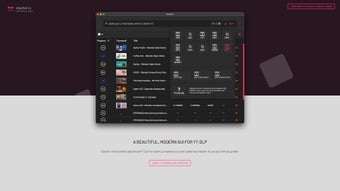
- Start downloading – Copy a YouTube video URL, paste it into the main window’s URL bar, and click the green “Download” button. A dropdown appears where you select the desired resolution and format. Press “Start” and watch the progress bar.
- Batch mode (optional) – For playlists, click the “Add Multiple URLs” button, paste each link on a new line, and let Stacher queue them. You can reorder the queue by dragging items up or down.
- Conversion – Once a download finishes, Stacher automatically converts the file if you selected a different output format. You’ll see a brief “Converting…” status before the final file appears in your chosen folder.
- Update checks – The app checks for updates each time it launches. If an update is available, a prompt will appear; click “Install” to keep Stacher current with YouTube’s evolving download mechanisms.
The entire workflow is designed to be as frictionless as possible, so you spend more time watching content and less time navigating complex menus. If you encounter any issues, the built‑in Help Center provides troubleshooting tips, and a community forum is available for advanced queries.
System Compatibility, Pros & Cons – Is Stacher the Right Choice for Your Mac?
Stacher is compatible with macOS 10.13 (High Sierra) and later, including macOS Ventura (13) and macOS Sonoma (14). The app runs natively on both Intel‑based Macs and Apple Silicon (M1, M2, and later) thanks to universal binary support. Minimum hardware requirements are modest: a dual‑core processor, 2 GB of RAM, and 200 MB of free disk space for temporary files.
Pros
- Free to download and use with no hidden subscription fees.
- Extremely fast download speeds thanks to multi‑threaded architecture.
- One‑click conversion eliminates the need for separate encoding software.
- Batch download capability saves time when dealing with playlists.
- Ad‑free and privacy‑focused – no data is sent to third parties.
- Regular automatic updates keep the downloader functional despite YouTube’s frequent changes.
- Lightweight design works smoothly on older Mac models.
Cons
- Only available for macOS; Windows and Linux users need an alternative solution.
- No built‑in video editing tools; you must use external apps for trimming or merging.
- Limited support for non‑YouTube platforms (e.g., Vimeo, Dailymotion) in the free version.
- While the UI is clean, power users might miss advanced customization options like proxy settings.
Overall Rating: 4.5 out of 5 stars
The combination of speed, format flexibility, and an ad‑free experience makes Stacher a standout YouTube downloader for Mac. Its only notable drawbacks are platform limitation and lack of built‑in editing, which are understandable given its free model.
Frequently Asked Questions (FAQ)
Is Stacher completely free, or are there hidden costs?
Stacher is 100% free to download and use. There are no hidden subscription fees, in‑app purchases, or premium tiers. All core features—including batch downloading and automatic conversion—are available at no cost.
Can I download videos from channels that require age verification?
Yes. Stacher follows YouTube’s public API and can handle age‑restricted videos as long as you are logged into a Google account that has access to the content. Simply sign in via the “Preferences → Account” section.
What video formats does Stacher support for conversion?
Stacher can convert YouTube videos to MP4, MOV, AVI, WMV, and audio‑only MP3 or AAC files. The conversion process is handled internally, so you never need an external encoder.
Is the downloaded video stored in the cloud or locally on my Mac?
All downloaded files are saved locally on your Mac in the folder you specify during setup. Stacher does not upload or store any content in the cloud, ensuring your media stays private.
How often does Stacher receive updates, and are they automatic?
Stacher checks for updates each time the app launches. When a new version is available—usually within a few days after YouTube changes its streaming protocol—the app prompts you to install the update automatically. This ensures uninterrupted downloading.
Final Verdict – Why You Should Download Stacher Today
If you spend any amount of time on YouTube and own a Mac, a dedicated downloader can dramatically improve how you consume content offline. Stacher delivers on every promise it makes: rapid, reliable downloads; seamless conversion to the exact format you need; and a clean, ad‑free interface that respects your privacy. Its free‑forever pricing model removes any barrier to entry, and the consistent update schedule guarantees long‑term compatibility with YouTube’s evolving infrastructure. While it’s limited to macOS and lacks advanced editing tools, those are minor trade‑offs compared with the sheer convenience of having an all‑in‑one download‑and‑convert solution right on your desktop. Download Stacher now, start building your personal video library, and enjoy YouTube on your terms—anytime, anywhere, without an internet connection.